
 en
en


Login to Microsoft 365 with Multi Factor authentication
Are you logging into Microsoft 365 for the first time with Multi Factor authentication?
Please watch the short video below or follow the steps.
Log in at https://portal.office.com
1. First, it is necessary to change your password. Enter the old password once and then create a new one.
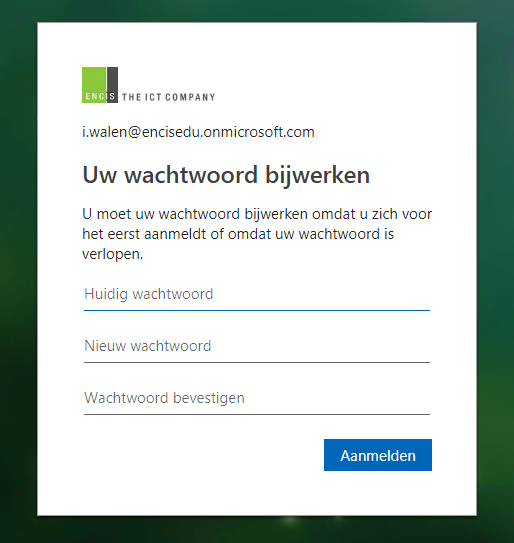
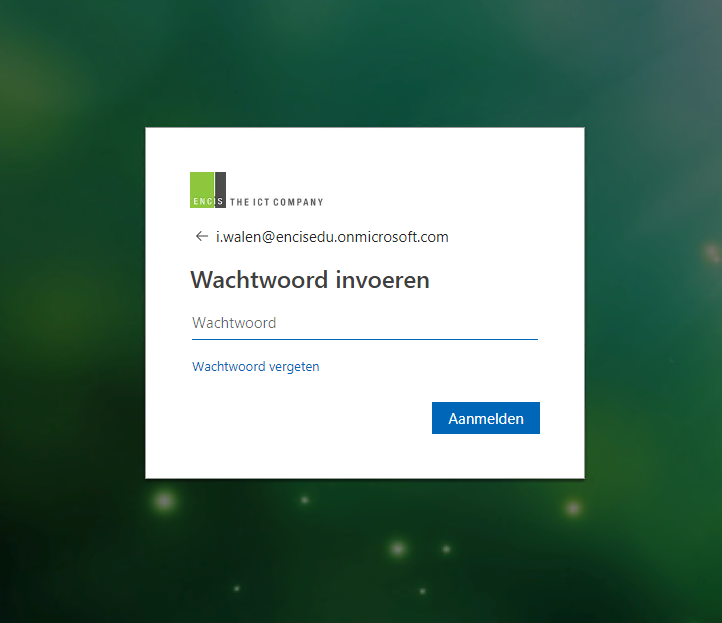
2. First, enter your login name (name@domainname) and the received password.
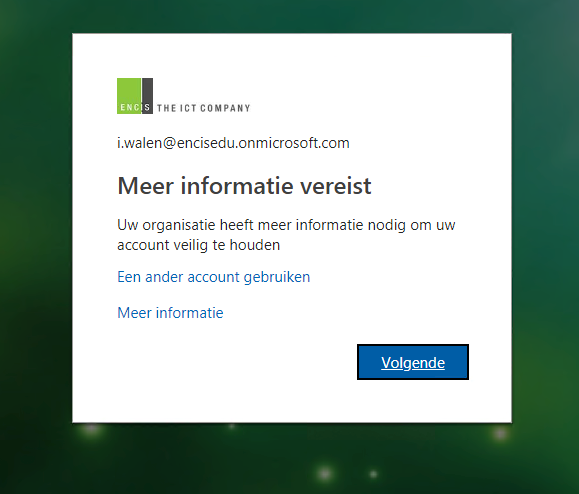
3. If Multi Factor Authentication is set up then you will be prompted for more information. Choose Next.
4. It is now necessary to enter additional security information. There are several options available. In this explanation we give the 'approve via authenticator app' option as we find it the most convenient and efficient. For this, it is important to first download the Microsoft Authenticator app on the cell phone.
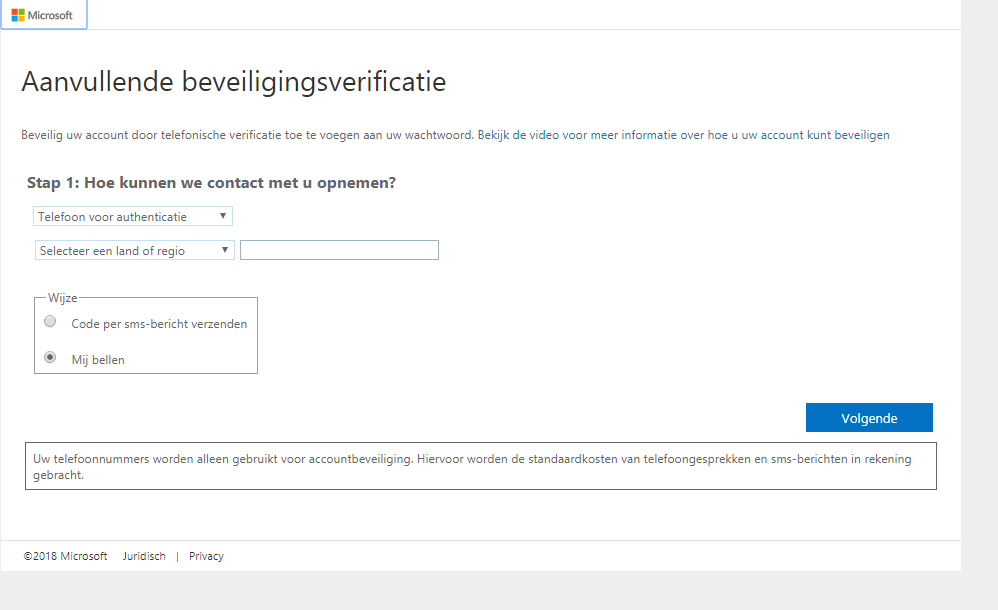
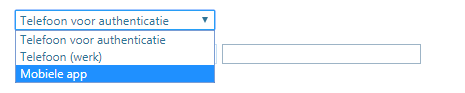
5. Choose 'mobile app' first.
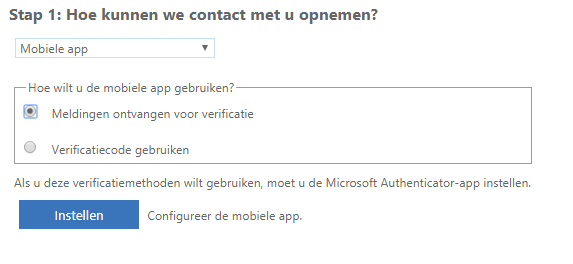
6. Select 'receive notifications for verification' and choose set.
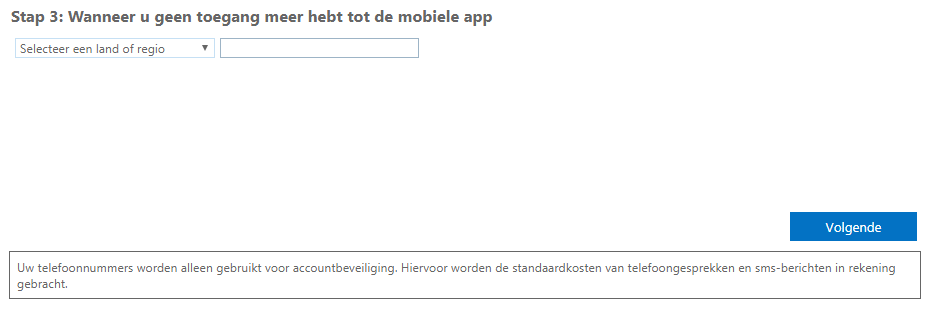
7. Fill in the country and then your mobile number.
8. Now install or open the Microsoft authenticator app on your cell phone and Scan the image given on the screen.
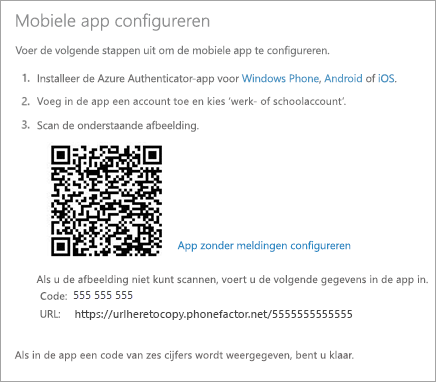
9. The authenticator app will now be set up.
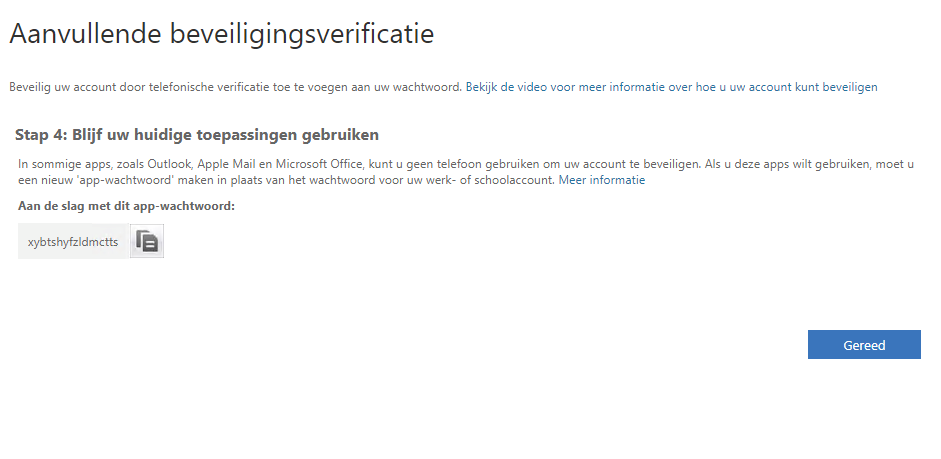
10. Within some apps, it is nnot possible to use a phone to secure an account. In that case, it is necessary to create an App password.
>
You are now logged into the portal.
Our specialists will be happy to help you
Encis is your IT partner, providing, installing, and managing your IT infrastructure, communication services, and applications.
Want to explore the possibilities? Get in touch.
Contact
